

Core Web Vitals: How to Improve LCP, INP, and CLS in Practice
Core Web Vitals are Google's three page-experience signals that feed directly into search rankings. Most website owners can name them; fewer know which one is hurting their specific pages, or where to start fixing it. This guide covers all three metrics: the official thresholds defined by Google, how to diagnose problems in Google Search Console, and the practical fixes for each one.
What Core Web Vitals Measure
Google currently defines three Core Web Vitals, each targeting a distinct dimension of user experience. The thresholds below are Google's official pass/fail criteria (source: web.dev/articles/vitals, Google, 2024):
- Largest Contentful Paint (LCP) measures loading performance: how long it takes for the largest visible element in the viewport to render. Good: 2.5 seconds or less. Poor: above 4 seconds.
- Interaction to Next Paint (INP) measures responsiveness: how quickly the page reacts to a user's click, tap, or keystroke. Good: 200 milliseconds or less. Poor: above 500 milliseconds.
- Cumulative Layout Shift (CLS) measures visual stability: whether elements on the page move unexpectedly during load. Good: a score of 0.1 or less. Poor: above 0.25.
INP replaced First Input Delay (FID) as the interactivity metric in March 2024 (source: developer.chrome.com/blog/inp-cwv, Google, 2024). FID measured only the delay before the first interaction was processed. INP covers every interaction across the full page session, which gives a far more complete picture of real responsiveness.
How to Find Your Data in Google Search Console
Before making any changes, establish a baseline. Google Search Console includes a Core Web Vitals report under the Experience section that groups your pages into three status categories: Good, Needs Improvement, and Poor. The data comes from real user measurements via the Chrome User Experience Report, not from a simulated lab test, so it reflects what your actual visitors experience on their own devices and connections.
To access the report: open Search Console, select your property, and navigate to Experience, then Core Web Vitals. Google provides separate reports for mobile and desktop. Click into a failing group to see which URLs are affected, then open a specific URL in PageSpeed Insights for an individual diagnosis with recommended fixes listed by priority.
Note that the Search Console report requires a minimum number of real-user data points to appear. New pages or low-traffic pages often show as "not enough data." In those cases, PageSpeed Insights' lab measurements are a useful starting point, though they simulate a controlled environment rather than real-world conditions.

Improving Largest Contentful Paint (LCP)
LCP is determined by whichever element the browser identifies as the largest visible content in the viewport at load time. This is usually a hero image, a banner photo, or a large heading. The core question is: how quickly can that element be discovered, downloaded, and painted?
The most common reason for a slow LCP is that the browser cannot find the resource early in the loading sequence. If your hero image is loaded via JavaScript, referenced as a CSS background-image, or set with a data attribute, the browser does not know it needs to fetch the resource until it has already parsed and executed a significant amount of code. The fix is to reference the LCP image directly in the HTML source using a standard img tag, and add the fetchpriority="high" attribute to signal that this download should be prioritized immediately.
Also check that your LCP image does not have loading="lazy". Lazy loading is beneficial for images below the fold, but applying it to an element in the initial viewport tells the browser to defer the download, which works directly against LCP performance.
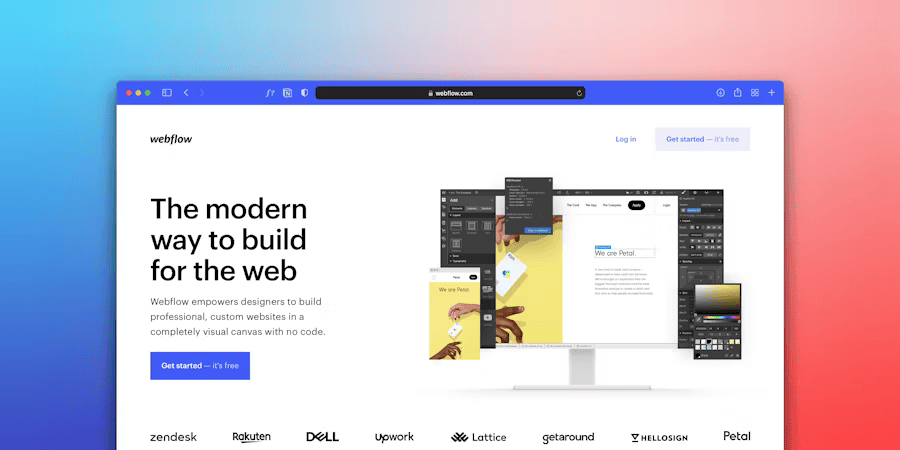
Server response time contributes directly to LCP. A slow Time to First Byte (TTFB) compounds every subsequent loading delay. Using a content delivery network that serves your HTML and static assets from a location geographically close to your visitors is one of the highest-impact interventions for sites with a distributed audience. Websites built on platforms with built-in CDN infrastructure, such as those covered in the overview of Webflow websites for businesses, tend to benefit from this at the infrastructure level by default.
Finally, compress and format your images appropriately. Converting images to WebP or AVIF reduces file size compared to JPEG or PNG for equivalent visual quality. Use the HTML srcset attribute to serve different sizes at different viewport widths, so a mobile device does not download the same asset as a large desktop monitor.
Improving Interaction to Next Paint (INP)
INP measures the delay from a user interaction, such as a click, tap, or keystroke, to the point when the browser paints the next visible frame in response. A high INP means the page feels unresponsive even when it loads quickly. The primary cause is almost always the JavaScript main thread being occupied with a long-running task at the moment the user acts.
The most effective fix is to break up those long tasks. According to Google's performance guidelines, any JavaScript task that runs for more than 50 milliseconds is considered a long task and can block user input (source: web.dev/articles/long-tasks-devtools, Google, 2024). Use scheduler.yield() to yield control back to the browser between chunks of work, so interactions can be processed between them. This technique, combined with third-party script auditing, is often where the most measurable INP improvement comes from, as also covered in the context of broader search engine performance work.

Third-party scripts are a common source of long tasks. Chat widgets, analytics tags, A/B testing scripts, and embedded social feeds all compete for the main thread. Audit what you have loaded via a tag manager and remove any scripts that are no longer active. For scripts you do need, add the defer or async attribute so they do not block page rendering or user interactions on initial load.
INP is also sensitive to DOM complexity. A very large DOM, with thousands of nodes and deep nesting, makes every style recalculation and layout operation slower. This amplifies the delay after an interaction before the browser can paint the response. Reducing unnecessary DOM nodes and flattening deep hierarchies both help reduce this overhead.
Improving Cumulative Layout Shift (CLS)
CLS occurs when visible elements move unexpectedly during or after the page loads. Common sources: images without explicit dimensions, ads or banners that push content down on load, cookie consent notices that appear above existing text, and web fonts that cause text to reflow when they finish loading.
The most reliable fix is to always specify width and height attributes on every image, video, and iframe. This lets the browser reserve the correct amount of space before the resource arrives, so nothing shifts when it loads. If your images have variable aspect ratios, use the CSS aspect-ratio property instead of fixed pixel dimensions.
For web fonts, use font-display: optional or font-display: swap to prevent a layout shift caused by a late-loading custom font. Preloading critical fonts with a link rel="preload" tag reduces the chance the font arrives after the page has already painted text in a fallback face.
Avoid injecting content above existing page elements dynamically unless the injection is triggered directly by a user action. Cookie consent banners, newsletter overlays, and promotional bars that appear immediately on page load frequently generate large CLS scores by pushing the visible content down. Reserve the required space in your layout before the element loads, so no shift occurs when it appears.
For context on how Google's ranking signals continue to evolve alongside Core Web Vitals, the article on Google Disables #num=100: What the Change Means for SEO, Rank Tracking and Tools covers another recent Search infrastructure change worth following.
Where to Start: A Prioritisation Decision Table
Once you have the Search Console report open, the question of which fix to attempt first is not always obvious. The table below maps the most common diagnostic observations to the responsible metric, the most likely root cause, and the first concrete action to take.
| What you observe | Metric | Most likely root cause | First action |
|---|---|---|---|
| Hero image or banner loads visibly late, especially on mobile | LCP | Image is not discoverable in initial HTML (loaded via JS or CSS background) | Replace with a standard img tag; add fetchpriority="high"; remove loading="lazy" from the LCP element |
| LCP is Poor even though images are small and compressed | LCP | High Time to First Byte (slow server response) | Enable a CDN for your HTML and static assets; review server-side caching configuration |
| Pages feel slow to respond after clicking a button or filling a form | INP | Long-running JavaScript tasks blocking the main thread during interaction | Open Chrome DevTools Performance panel, record an interaction, identify tasks over 50 ms, and yield between them using scheduler.yield() |
| INP is Poor on pages that load many third-party scripts | INP | Third-party scripts executing heavy work on the main thread | Audit your tag manager; remove expired or unused scripts; add defer or async to remaining ones |
| Content visibly jumps on page load, especially on mobile | CLS | Images or iframes without explicit dimensions | Add width and height attributes to all images and iframes; check for content injected above the fold on load |
| CLS score worsens after adding a cookie banner or chat widget | CLS | Dynamic content inserted above existing page content without reserved space | Reserve the layout space before the element loads, or trigger the element only after a direct user interaction |
What to Expect After Fixing Core Web Vitals
Core Web Vitals are one input into Google's Page Experience signal, which contributes to search rankings alongside content quality, backlinks, and other factors. Improving them is unlikely to produce an overnight ranking change on its own. Sites that move the majority of their pages from Poor to Good thresholds are, however, clearing a threshold that otherwise works against ranking potential. The effect tends to be most visible on competitive queries where other ranking factors are roughly equal between competing pages.
The impact on user behavior is often more immediate than the SEO effect. Pages that feel faster and more stable generate lower bounce rates and longer session times. These behavioral signals feed back into how Google evaluates page quality over time. Viewed from that angle, Core Web Vitals work pays off twice: once in direct ranking signals, once in the downstream user-experience data Google collects.
Treat Core Web Vitals as continuous maintenance rather than a one-time project. Scores can regress when new images, fonts, or third-party scripts are added without the same attention to performance. Check the Search Console Core Web Vitals report monthly, and include a performance review whenever the site receives a significant content or code update. Checking your position in Google's search results pages over time, as covered in the SERP glossary entry, helps you track whether performance improvements translate to ranking changes for your target queries.




























rev%20komprimiert.jpg)
.jpg)

.png)






.jpg)


